Importing Historical Data
This guide describes how you can migrate your data from another system to Fenerum.
Import historical MRR
This feature allows you to import and track MRR of subscriptions prior to the start date in Fenerum. Example use case:
- subscription is started on 01-02-2023 with quantity of 1 (MRR: 123)
- subscription is updated on 01-03-2023 with quantity of 2 (MRR: 246)
- you start using Fenerum on 01-01-2024
- you create subscription in Fenerum that starts on 01-01-2024 with quantity of 2 (MRR: 246)
- you create manual activities for the above-mentioned subscription that reflects the historical MRR of the subscription
Import manual MRR activities through import
If you have multiple subscriptions that you need to import historical MRR for, follow the steps below:
- Go to subscription activities.
- Filter after type "Created new subscription".
- Export all these to Excel.
- In the Excel file you need to remove line under "uuid" and delete all columns to the right of mrr.
- You need to change date, quantity and MRR so they are corresponding to what the MRR was at that time. ID of subscription in subscription columb and terms, needs to stay the same.
NB If you only need to import historical MRR for one subscription, go to details section of subscription and click "Show all" under Key activities. You need to filter after type "Created new subscription" and then click Export to Excel.

In the Excel file you need to remove line under "uuid" and delete all columns to the right of mrr.
If we look at the given example, you need to do the following:
- You need to edit the date of the first line and change it to 01-02-2023
- Change the quantity to 1
- Change MRR to 123, in order to get MRR of 123 in February 2023.
- To get MRR of 246 from March 2023 and going forward until start of subscription in Fenerum, you also need to create one more line with the same subscription ID and terms.
- On that line, you need to change date to 01-03-2023, quantity to 2 and MRR to 246.
You can see an example of this, here:

Each row without a value in the UUID-column will create a manual activity. Save the file after making all the required changes.
Then go to the Import data section.
Select manual activity as type of import and upload the file with manual activities. You can see the input format when you click on the File format descriptions button.
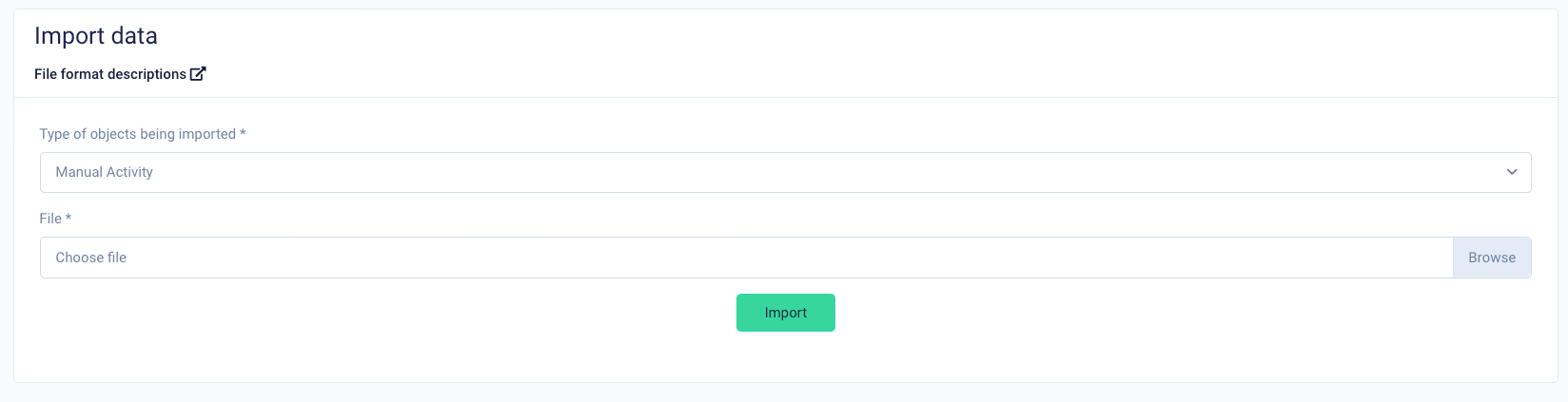
If you made any mistakes or want to make some changes to already created manual activities you can export the activities again with the Is manual filter.

You can make changes to those activities as long as they precede the start date in Fenerum and are manual activities. The UUID-column should not be empty if you want to edit an activity.
Import manual Churn activities through import
1. Upload subscriptions
Find the template for uploading subscriptions:
https://app.fenerum.com/importers/documentation/subscription/
All the cancelled subscriptions needs to uploaded in Fenerum - please note that the start and end date needs to be equal and needs to be the day when the subscription is expire
Example of an excel sheet ready for upload
2. Upload historical MRR activities
Follow the steps above to upload your historical activities on cancelled customers
You will then see the customer's subscription with a status of expired and with a start and end date earlier than today's date.
Example:
You will also see a new MRR activity and a cancel MRR activity.
Create/modify manual activities through API
Using the API, you can perform standard CRUD operations on manual activities. They are described in the Activity API documentation.