Correcting a subscription from a past date
Sometimes a subscription may have been invoiced wrongly for a while. For example, the customer added seats a month ago but nobody updated the quantity in Fenerum. With Correct from a date in the past you can apply the right quantity, plan terms, custom price or discount from the day it should have started. Fenerum then automatically credits every invoice issued since that day and reissues the corrected amounts on a new invoice.
How it works
When you correct a subscription from a past date, Fenerum automatically:
- Credits every invoice issued from that date. Each affected invoice gets its own credit note, linked to the original invoice. The billing period that contains the selected date is credited partially (Partial refund), and later periods are credited in full (Full refund).
- Settles what is still open. If the original invoice is still open, its credit note settles it. Amounts that a pending payment is already collecting are left alone.
- Keeps credit for paid invoices on the account. If the original invoice has already been paid, the credit stays on the account as account credit. If Automatically apply credit from opened credit notes is enabled for your organization (it is by default), the credit is used on the corrected invoice.
- Issues one corrected invoice, dated today. It charges the corrected values for every affected billing period, each prorated over its own full billing period.
- Moves the MRR on the selected date. The MRR change is recorded on the date you chose, not today, so your MRR reporting shows the change when it actually happened.
Correcting a subscription
You need the Full access to billing permission.
Go to the account and click the edit icon on the subscription.
Make the change: update the Quantity, Plan, Price, Custom price or the discount in Advanced Settings.
Below the form, select Correct from a date in the past.
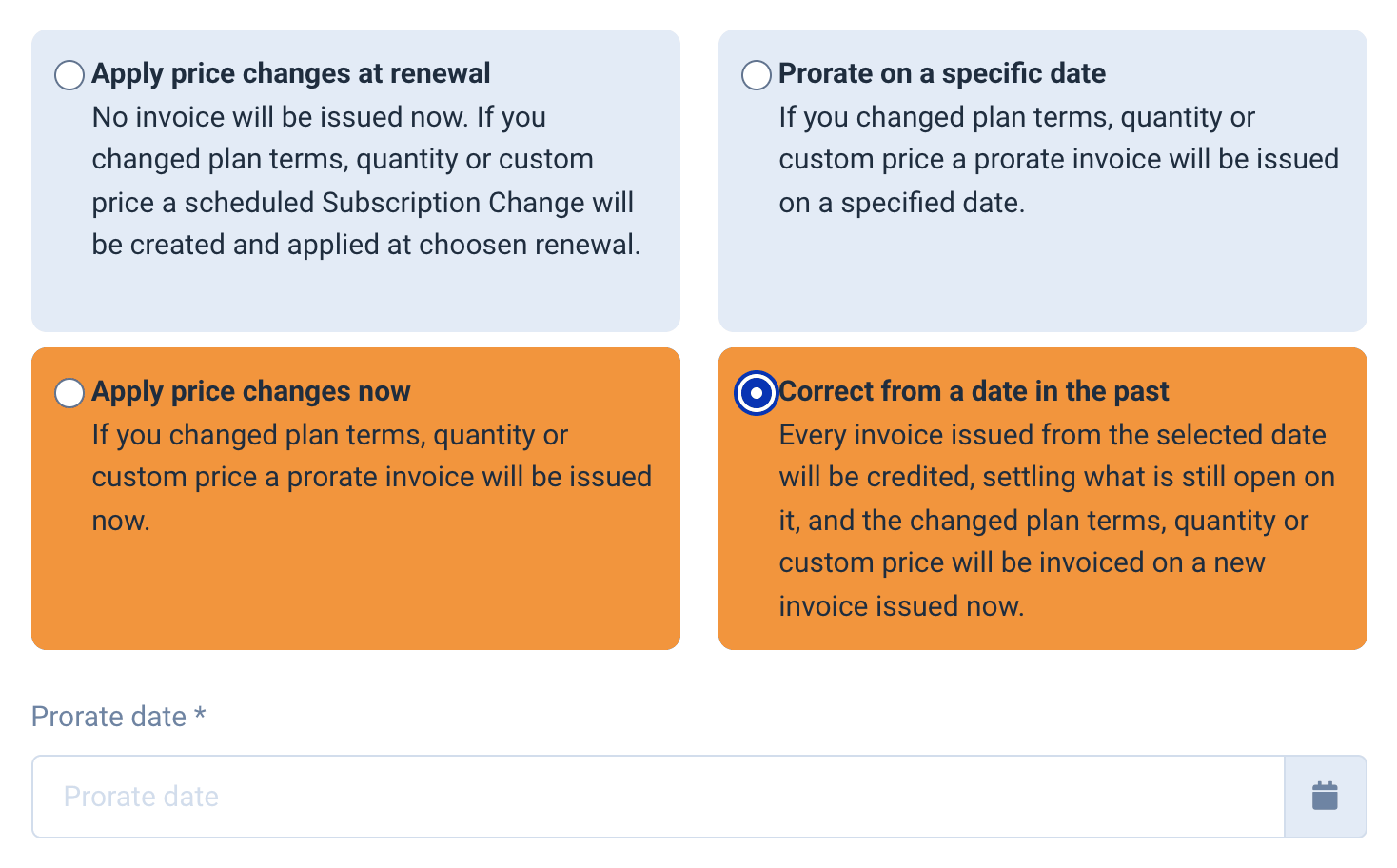
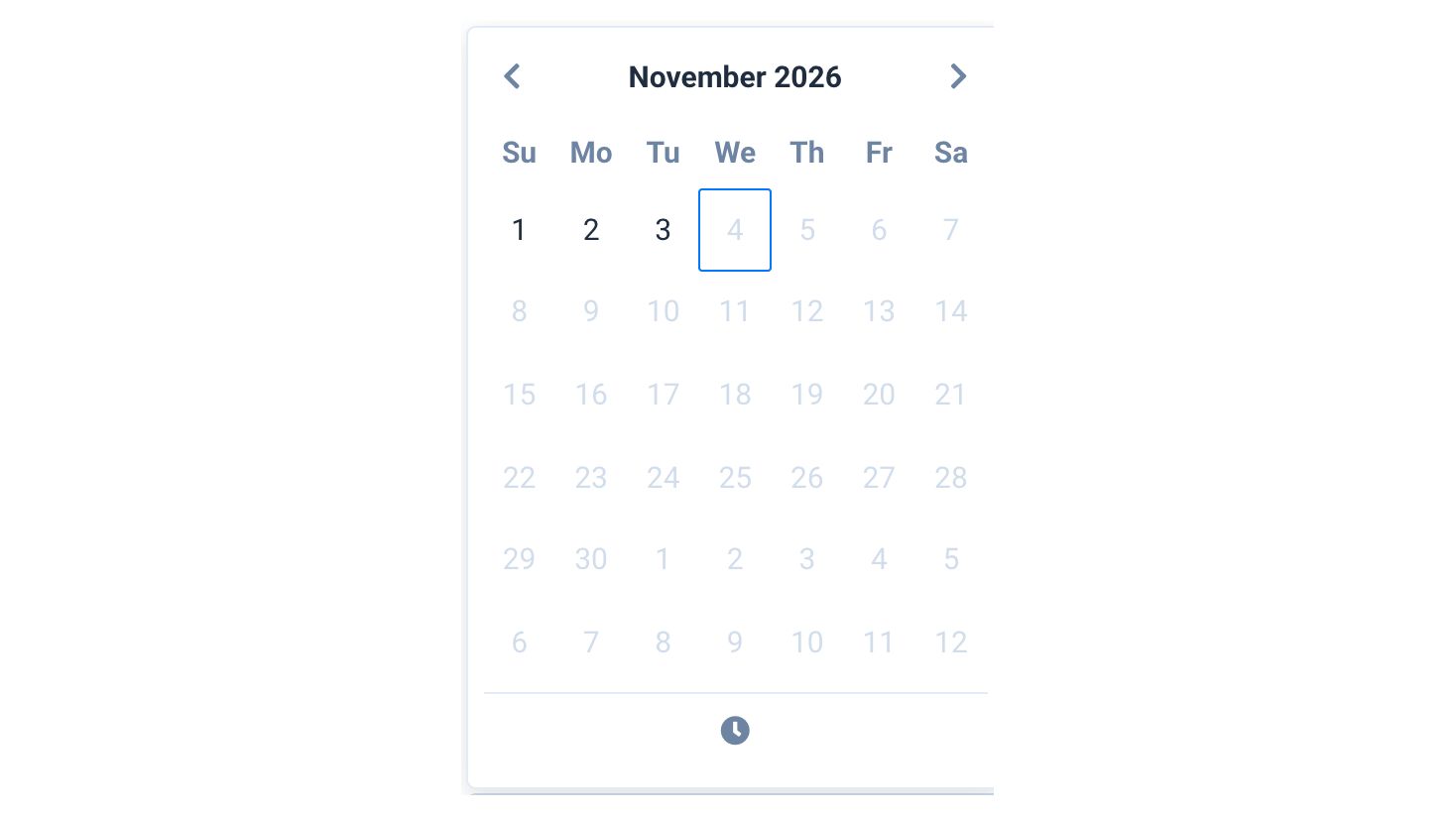
In Prorate date, choose the day the change should have applied from. The date picker only lets you pick days that are allowed (see Which dates can I choose?).
Check the Subscription Summary before you save. It shows:
- one entry per credit note, with the amount credited, how much of it settles the original invoice and how much becomes account credit;
- the change itself, with the MRR change and the corrected invoice.
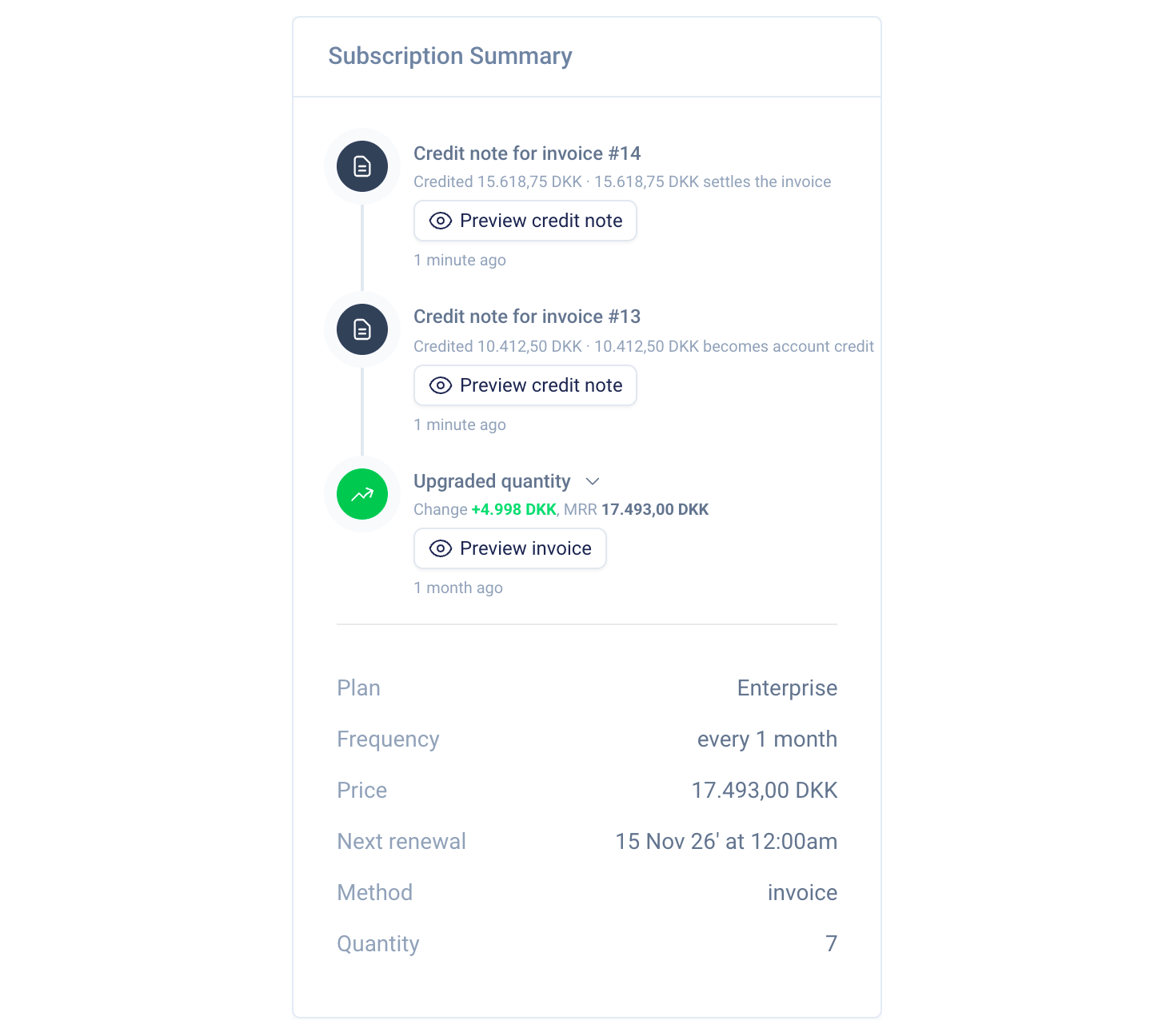
Click Preview credit note or Preview invoice to see the documents before they are issued.
Click Save. Fenerum automatically issues the credit notes and the new, corrected invoice right away.
This cannot be undone
Saving issues credit notes and a new invoice, and they are synced to your ERP system like any other invoice. Check the Subscription Summary and the previews carefully before you save.
Example
A customer has a monthly subscription with 5 seats that renews on the 1st of each month. On March 10 you find out they actually went up to 7 seats on January 1.
You change the quantity to 7, select Correct from a date in the past and choose January 1. Fenerum then automatically:
- credits the invoices from January 1, February 1 and March 1, one credit note per invoice;
- issues one new invoice for 7 seats for January, February and March.
The MRR change is recorded on January 1.
Which dates can I choose?
The prorate date must be:
- in the past (yesterday at the latest);
- at most 5 years back;
- on or after the subscription's start date.
All dates are in the subscription's timezone. If no day is allowed, for example because the subscription started today, the option is not shown.
When is it not available?
A correction from a past date is not possible for:
- subscriptions on backwards-charging plan terms, before or after the change (the option is not shown for these);
- accounts invoiced through a reseller;
- accounts with a contract that covers the selected date;
- changing the billing frequency.
Fenerum also rejects the correction with an error on the form if:
- the subscription was changed, reactivated or repriced after the selected date, since re-invoicing would overwrite that change. Choose a date after the last change instead;
- the billing periods changed after the selected date, for example because of an early renewal or a moved renewal date. Choose a later date;
- nothing has been invoiced for the subscription from the selected date.
