Import Invoices
This article covers how to import invoices to Fenerum. This is usefull if you want to reconcile invoices sent outside of Fenerum.
Import invoices
If you have some invoices that still need to be reconciled, or you just want to have invoice history in Fenerum you can import all your historical invoices to Fenerum. First go to the Import data section.
Click on the File format descriptions button. Then go to Invoice line tab and click Get example file.
Each row in this file represents a single invoice line. To add an invoice with 2 invoice lines you will have to create 2 rows in this file with the same invoice number.

Additionally, invoice_date, invoice_due_date and invoice_currency should have the same values for invoice lines in the same invoice (same invoice_number). Add as many invoice lines as you would like to import and save the file.
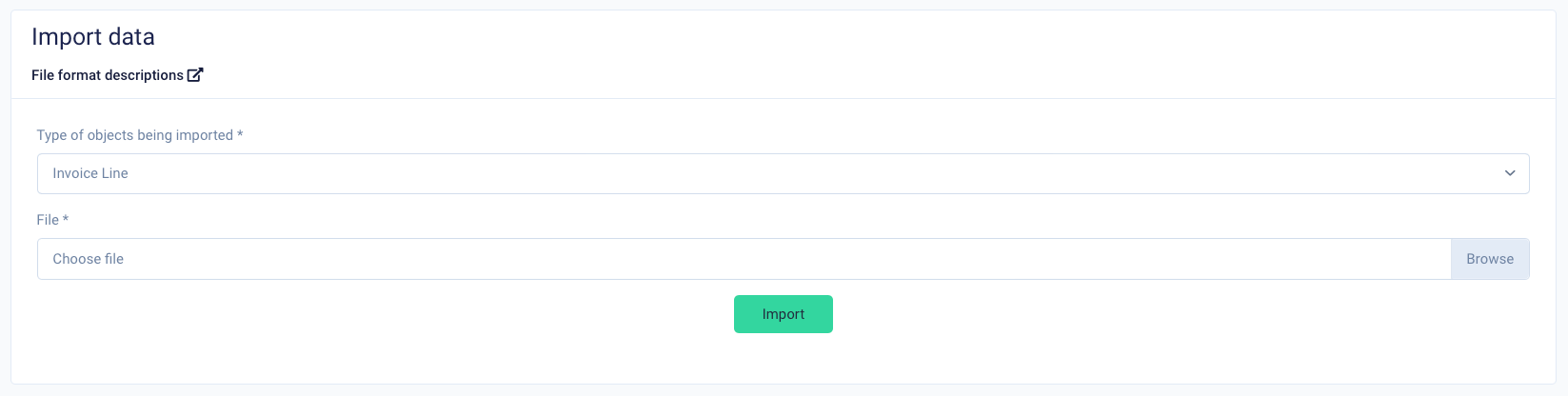
Then go back to the Import data section and select Invoice Line as the type of import and upload the file with invoice lines.
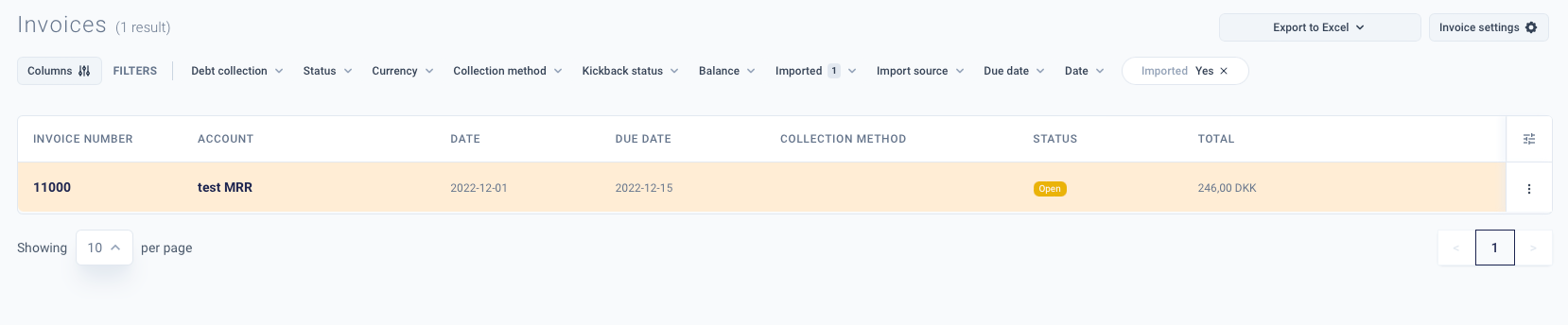
Imported invoice will be visually indicated by the orange colour. On the invoice list you can use the Imported filter to see only imported invoices.
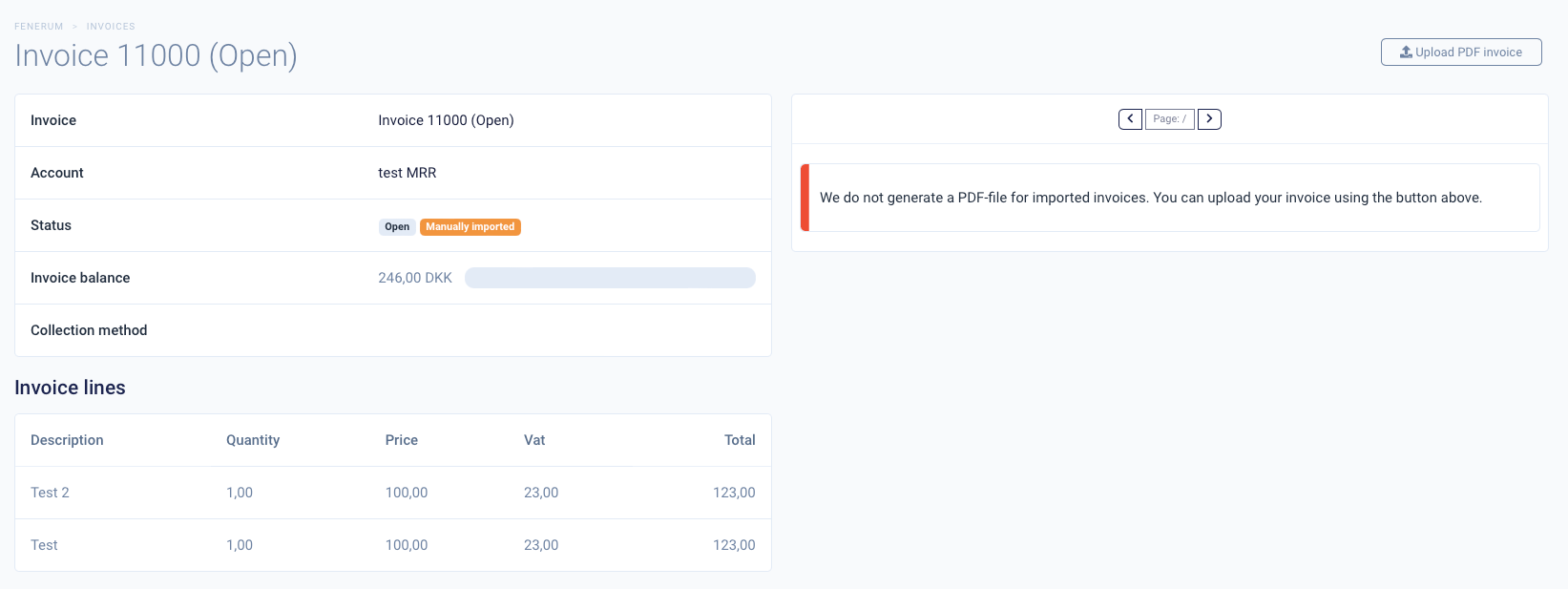
As you can see we have 2 invoice lines which match rows from the imported file.
Delete imported invoices
If you made any mistakes while importing manual invoices, you have an option to delete all manual invoices. If some manual invoices were already reconciled inside Fenerum, they will not be deleted. You can delete manually imported invoices for the entire organization or only for one account.
Delete for the entire organization
First go to the Invoices section.
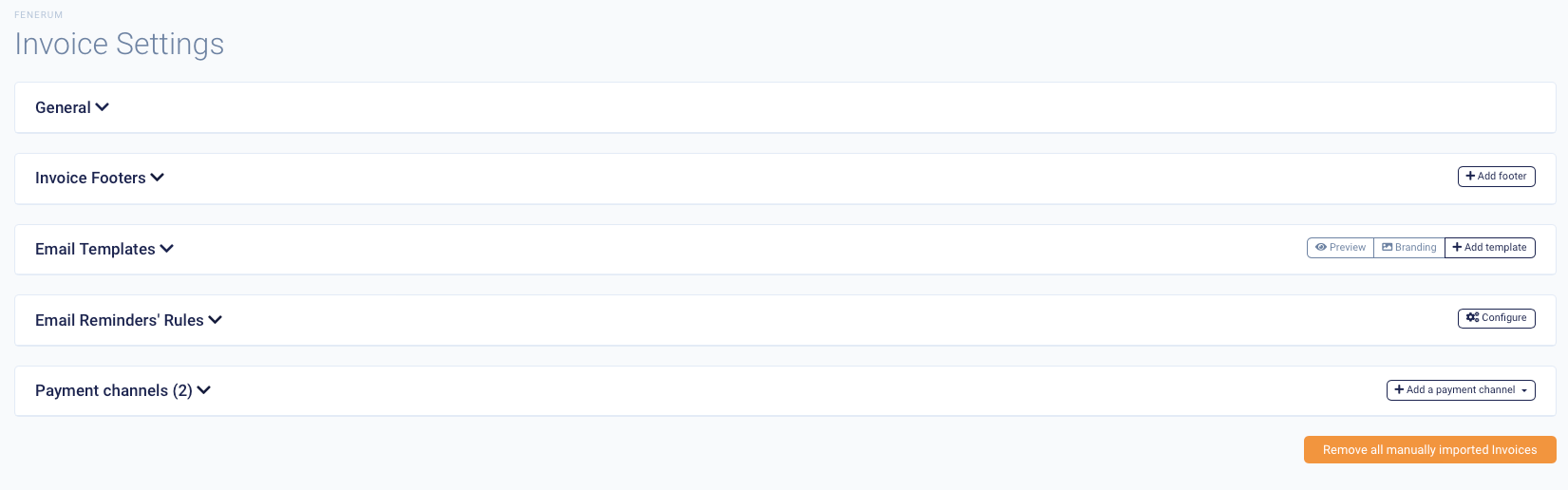
If you have any manual invoices you should see an orange button that will allow for deleting manually imported invoices.
Delete for one account
Open account details. Then you will see the Manually imported Invoices button. You have an option to display all manual invoices for an account or delete them.