Reminder fees
Reminder fees let you charge your customer an extra fee whenever Fenerum sends a payment reminder for an overdue invoice. When a reminder rule has a fee attached, Fenerum automatically creates a separate fee invoice and links it to the original overdue invoice.
How it works
- You add a Fee amount to one or more of your reminder rules.
- When that reminder is sent for an overdue invoice, Fenerum sends the reminder email and then creates a separate fee invoice for the fee amount.
- The fee invoice is linked back to the original invoice, so you can always see which invoice a fee belongs to.
Because the fee lives on its own invoice, it is booked, collected and reported independently of the original invoice while still being clearly connected to it.
Setting a fee on a reminder rule
Head to Invoice Settings, expand the Reminders' Rules section and click Configure. Each rule already lets you set the collection method, the number of days after the due date, and the email template to use. With reminder fees enabled, each rule gains a Fee amount field.
- Enter the fee you want to charge for that reminder step.
- The amount is defined in your organization's accounting (corporate) currency.
- Leave the field empty (or set it to zero) if a particular reminder step should not carry a fee.
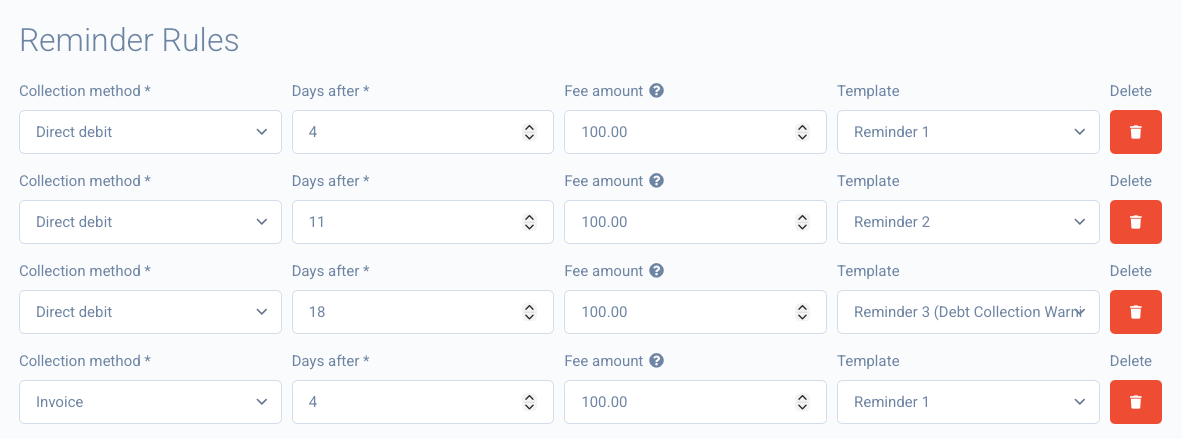
You can set different fees for different reminder steps and collection methods, so for example the first reminder can be fee-free while later reminders carry a fee.
Accounting settings for reminder fees
When the feature is enabled, a Reminder Fees section appears under your Accounting settings. It contains three settings:
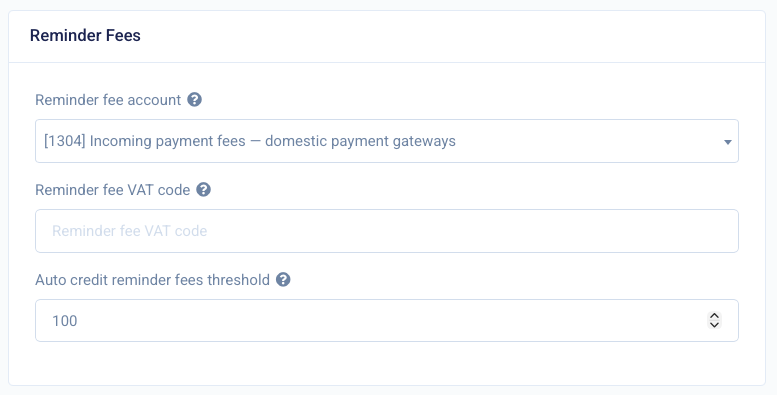
- Reminder fee account the ERP account used to book the revenue from reminder fees. Fee invoices are posted to this account instead of your normal revenue account.
- Reminder fee VAT code the VAT code applied to reminder fees. This is used when VAT codes are not taken automatically from your ERP accounts. If your organization derives VAT from ERP accounts and the reminder fee account has a VAT code, that code is used instead.
- Auto credit reminder fees threshold controls automatic crediting of fee invoices when the original invoice is paid (see below). Leave it empty to disable auto-crediting.
Automatically crediting fees when the invoice is paid
Sometimes you may want to waive the reminder fee once the customer settles the original invoice
Set the Auto credit reminder fees threshold to enable this. When the original invoice is paid, Fenerum will automatically issue a credit note for the linked fee invoices, but only if the account's total outstanding balance is at or below the threshold you set. This means customers with large outstanding balances still keep their fees, while smaller balances are cleared automatically.
Leave the threshold empty to disable auto-crediting entirely.